
17 Jul 2026 Why you should Turn off your Outlook Reading Pane
Turn off your Outlook Reading Pane and reduce distractions
One of the most surprising productivity tips I share in Outlook training is this: turn off the Reading Pane.
Most people are shocked when I suggest it. After all, the Reading Pane is turned on by default, so surely Microsoft expects us to use it. But over many years of training and coaching, I’ve found that leaving it switched on can encourage constant interruptions, reactive email habits, and unnecessary distractions.
The Microsoft Outlook Reading Pane gives you an instant preview of any email you select in your Inbox without needing to open it in a separate window. Because it’s enabled by default, many people simply assume it’s the only way to work with email.
Whilst on the surface, this may appear to be useful, I believe it presents several problems that may not be readily apparent, but once you consider these, you may just change your mind. Maybe… 😉
So here are several reasons you might be better off with your Reading Pane turned off.
It’s too easy to get distracted!
The big one for me is that whilst reading the email on the RHS of your Inbox, it is very easy to get distracted if another email arrives in your Inbox. With your Reading Pane on, you see it immediately and this can be a big distraction!
I’ve written extensively on that here – Continuous Partial Attention – Here’s 3 more ideas to help overcome continuous partial attention.
I see this regularly during one-to-one productivity coaching sessions, and it used to happen to me as well. That’s one of the main reasons I changed the way I work with email.
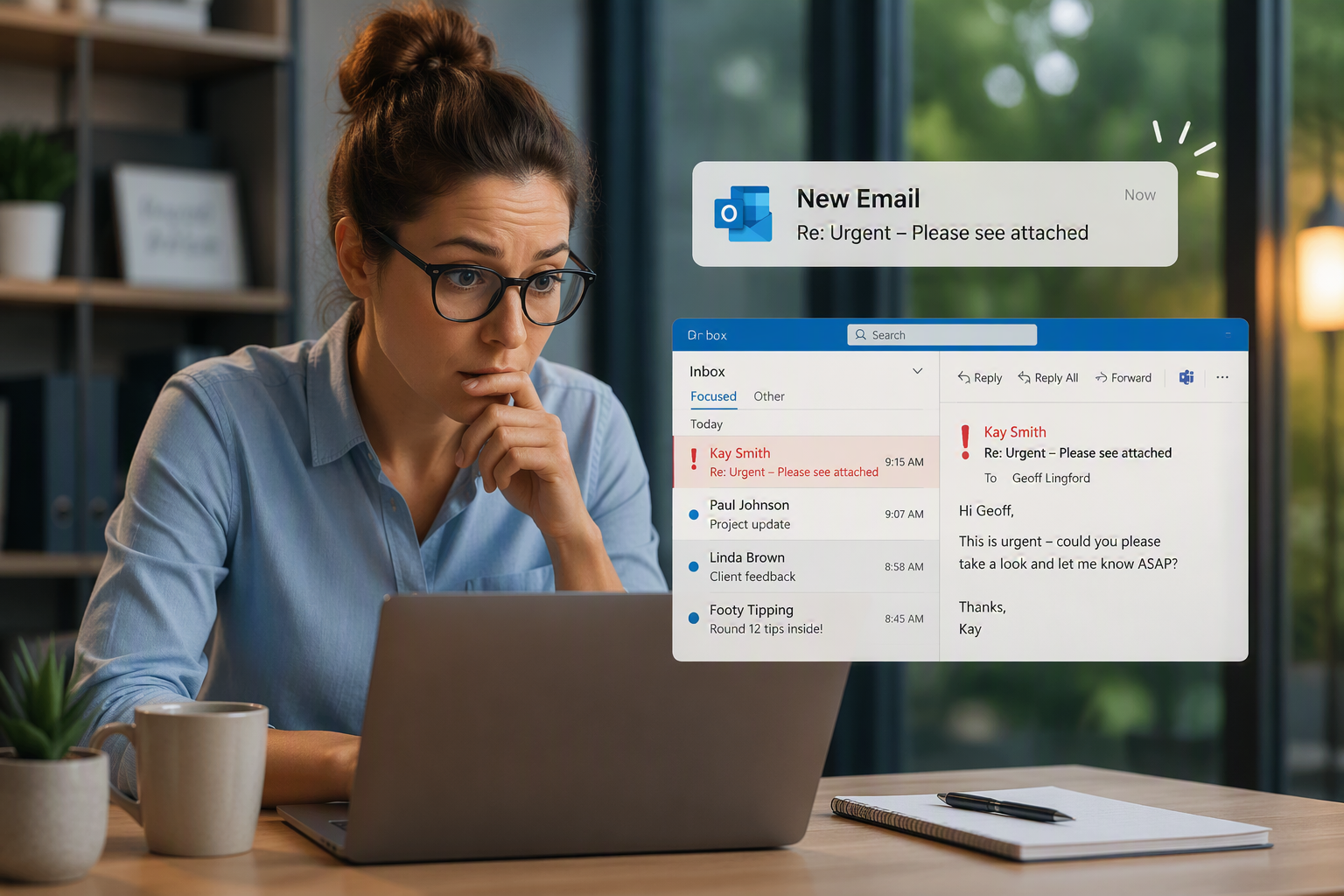
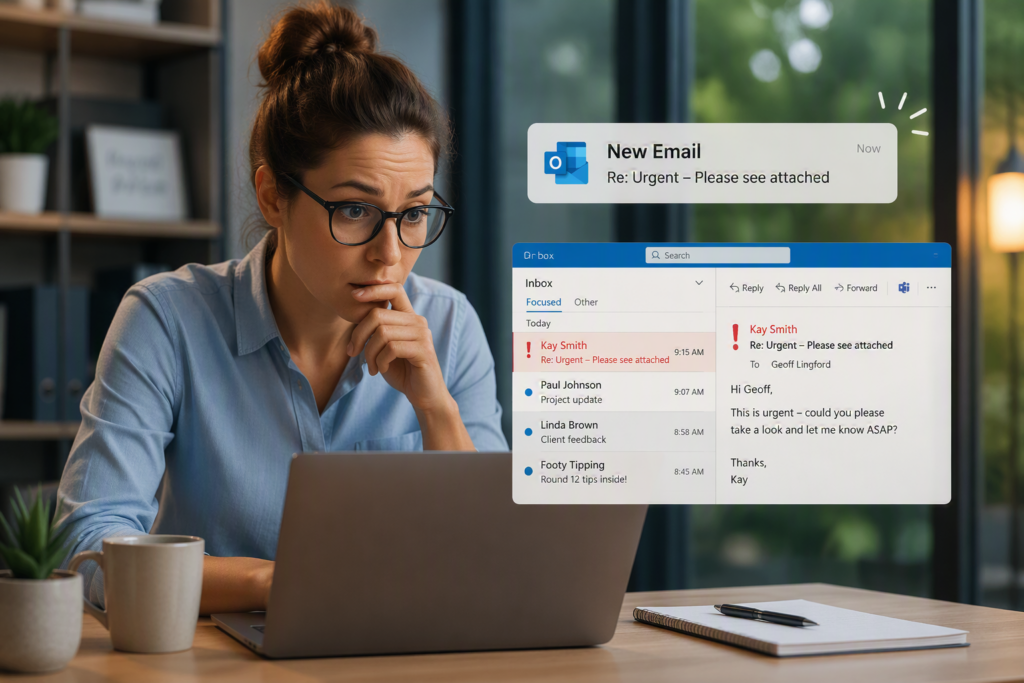
So look at the example below. You may be trying to read this email from Kay, but whilst you are doing that, two more emails come in over the top, which can very easily distract you! Especially the Footy Tipping one! 🤣
When your Reading Pane is turned off, you need to deliberately open an email to read it. I recommend opening it in its own window and giving it your full attention before moving on to the next message.
One Email must be constantly viewed
With the Reading Pane enabled, Outlook is constantly displaying the contents of an email, even when you’ve already read it. That information remains in your peripheral vision, competing for your attention while you’re trying to work on other things.
Turning off the Reading Pane creates a more neutral workspace. You see your list of emails, but you only see the contents when you deliberately choose to open one.
Additionally, once you have read the email, it is incredibly easy to skip to the next email, without really processing it using the 4D methodology. Read about that here.
Privacy Concerns
There may be some issues around Privacy you wish to consider, especially if you are working in an Open Plan office environment. You may be forced to close your screen off if someone walks up behind you.
This is less likely to be an issue if people can only see the Sender and the Subject line.
Opened and marked as “Read”
Perhaps the biggest practical issue is that simply selecting an email often marks it as read.
You’ve seen the message and absorbed some of the information, but you may not be ready to deal with it. By moving on to another email, you’ve effectively hidden a task from yourself because the message is no longer bold and obvious.
Many people then compensate by marking messages as unread again, creating an Inbox full of emails scattered throughout the day waiting to be revisited.
The Subject line is enough!
In many cases, the subject line provides enough information for me to decide whether I need to open the email now or whether it can wait until later.
I don’t necessarily need to see the contents of every message the moment it arrives. I’d rather make a conscious decision about when I’m ready to read and process it.
Turn off Outlook Reading Pane
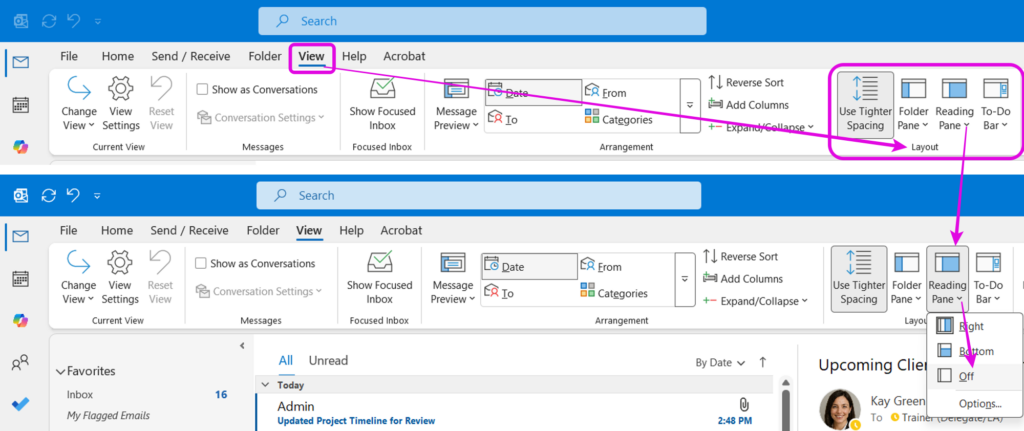
So how do you turn off the Outlook “Reading Pane” from your default Inbox view.
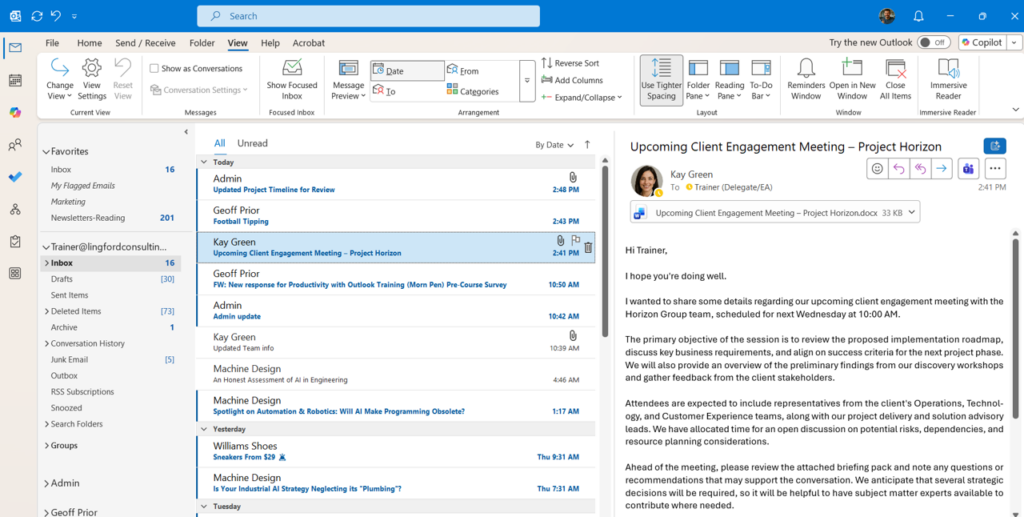
From your Inbox: View Menu > Reading Pane > Select “Off” as shown below.
Final Thoughts
I’ve been recommending this change in Outlook training for many years. While not everyone sticks with it, many people tell me they become less reactive to email and more deliberate about how they process their Inbox.
I’m not suggesting that everyone must turn off the Reading Pane. Plenty of people prefer working with it enabled, and that’s perfectly fine.
However, if you often feel distracted, regularly jump between emails, or struggle to stay focused on one thing at a time, it’s worth experimenting with a different approach. Try turning the Reading Pane off for a week.
You may find that you’re more intentional about when you open emails, less likely to be distracted by new arrivals, and better able to process messages using a consistent workflow.
Sometimes the smallest changes to the way we use Outlook can have the biggest impact on our ability to stay focused and work more intentionally.
Geoff Prior – Lingford Consulting, July 2026
Digital Productivity Tools Trainer & Coach/MBTI Consultant
View our "On-Demand" Training Courses
Want to learn more ways to optimise Microsoft Outlook, check out our Productivity with Outlook training programs.
No Comments